Braille Transcription Editor for Windows, Mac, iPad and the web

Quality Brailler

The braille editor we built for transcribers. Work directly on formatted braille pages with six-key entry, translate print into UEB and Nemeth, and open the BRF, .B2K and .BML files you already have.

Works on Windows, Mac and iPad.

Quality Brailler needs a computer or an iPad. On a phone, try the Free Braille Translator.

To start your 14-day free trial, open Quality Brailler and create a free Quality Braille Transcriptions (QBT) account. In the box “Create your free QBT account”, type your email address and choose “Email me a code”. If that box is not open, choose “Create a free account” first. In the web version, the page is called “Sign in or create account”, and its button is also “Email me a code”. You do not need a card.

Free download from Microsoft Store for Windows 10 (version 1809 or later) and Windows 11, 64-bit, and, in the United States, from the Mac App Store for macOS 13.3 or later. One 14-day free trial per email address, with no card needed. After that, plans are $29 a month or $290 a year (see plans). On an iPad or any other computer, use the web version in your browser, signed in with your QBT account.

How Quality Brailler compares with Duxbury, BrailleBlaster and Braille2000

Made for the way transcribers work

You edit the braille itself, on real braille pages. Print is there when you need it: to type in, to translate from, and to proofread against.

Edit formatted braille pages

Work on braille pages 40 cells by 25 lines, one or two at a time. Enter braille with six-key entry on F D S and J K L, type ASCII braille, or use on-screen braille keys on a touch screen.

Running heads, print page numbers and page-change lines are laid out for you, and every Nemeth passage is highlighted from its opening indicator to its terminator, so code switches are easy to check.

Quality Brailler editing braille pages 2 and 3 of a pre-algebra review, two pages across. The running head and page numbers are shaded gold, each Nemeth passage is highlighted in green, and the dock on the left shows the page, line and cell of the cursor and the paragraph's format and code.

Proofread against the print

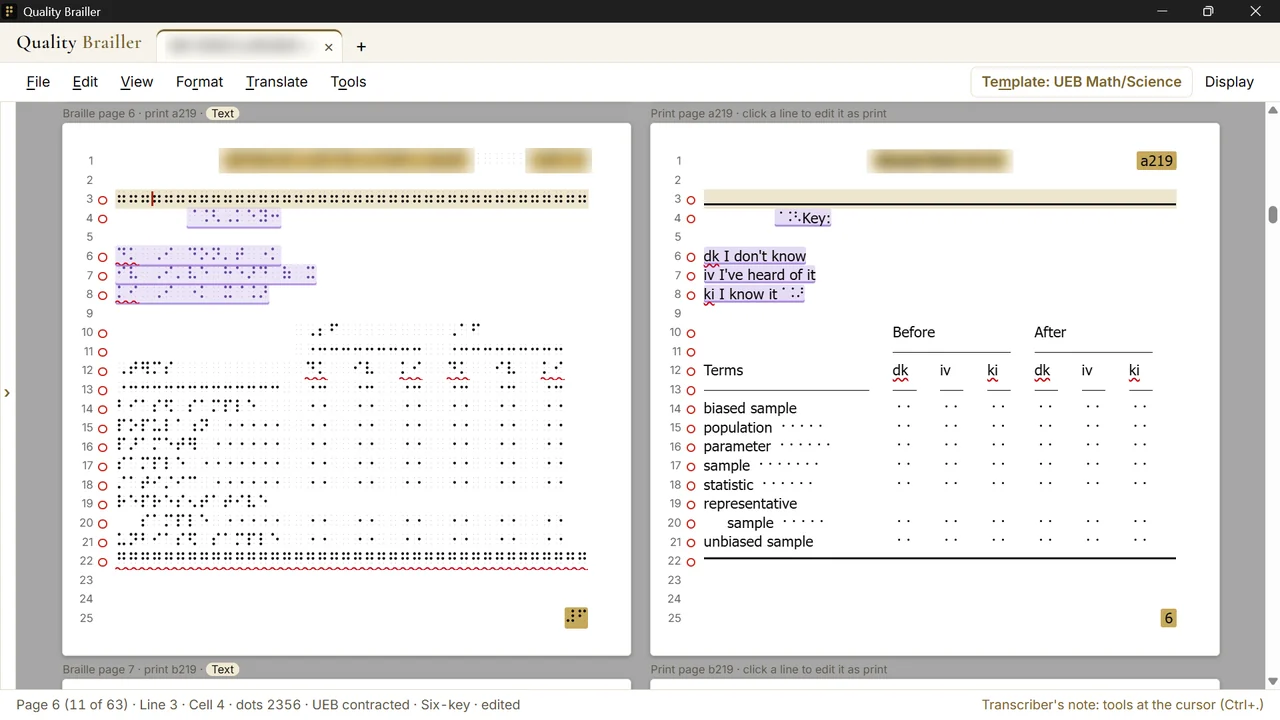
Side by side puts each braille page next to its back-translated print page, with bold and italic kept and Nemeth math shown as print. Tables, transcriber’s notes and guide dots line up with the braille. Click a line of print to edit a UEB paragraph as print, and the braille updates as you type.

You can also open two documents, or a PDF of the print book, beside the braille and scroll them together.

A braille page with a vocabulary table beside its print page: the key in a transcriber’s note, the Before and After columns, and each term with its guide dots, line for line with the braille.

Interline and print views

Interline view puts the print under every braille line, on the same layout as the braille page. Print view back-translates the whole transcription for proofreading, special symbols and transcriber’s notes pages included.

Switch between braille, ASCII, print and interline views at any time.

Interline view, zoomed in on braille page 3, a lesson on fractions: the print appears under every braille line, on the same page layout as the braille.

Tactile graphics and the page overview

Tag a braille page as a tactile graphic with its description, and it stands out in pale yellow. Tactile graphic tags already in a .B2K or .BML file are read when you open it.

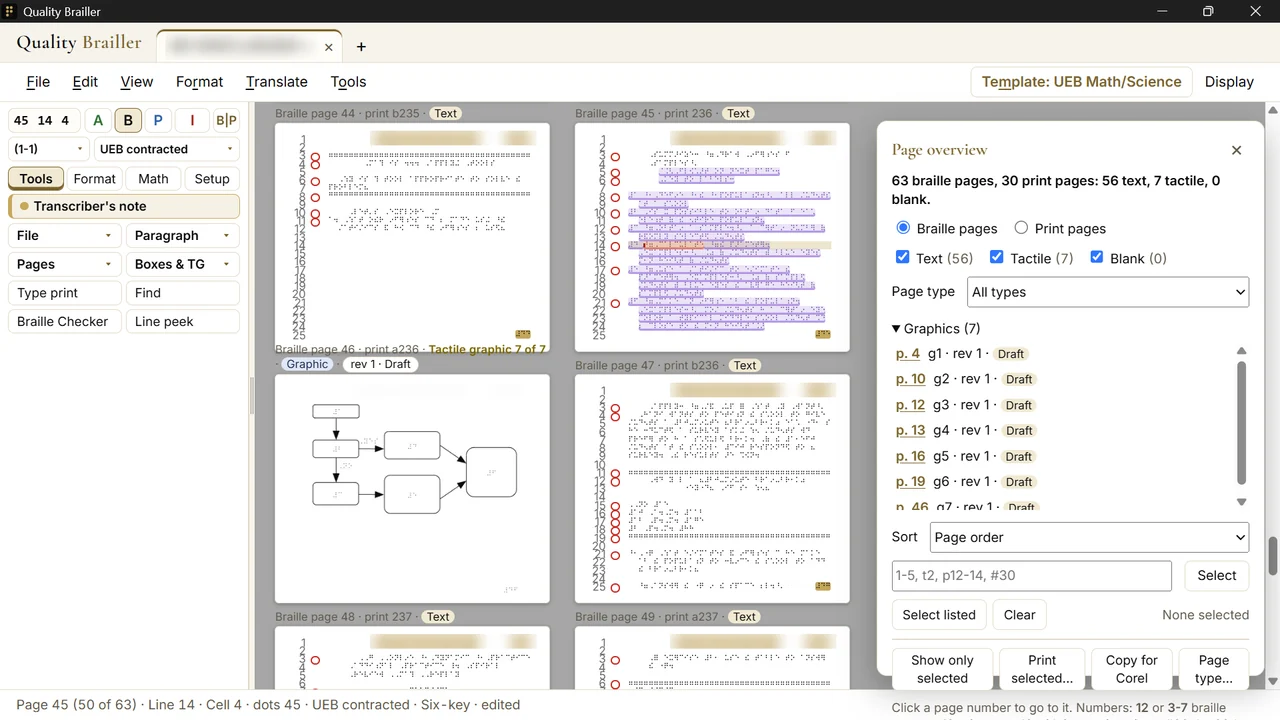
The page overview lists every braille or print page with what is on it: text, tactile graphic or blank, and every graphic with its page, revision and approval. Pick pages by number, show only those, print them, or copy them line for line to paste into CorelDRAW.

Four braille pages of a math volume, one of them a tactile graphic of a flowchart, beside the Page overview: 63 braille pages, 56 text and 7 tactile, and the list of seven graphics with their pages, revisions and draft status.

Embed your tactile graphics

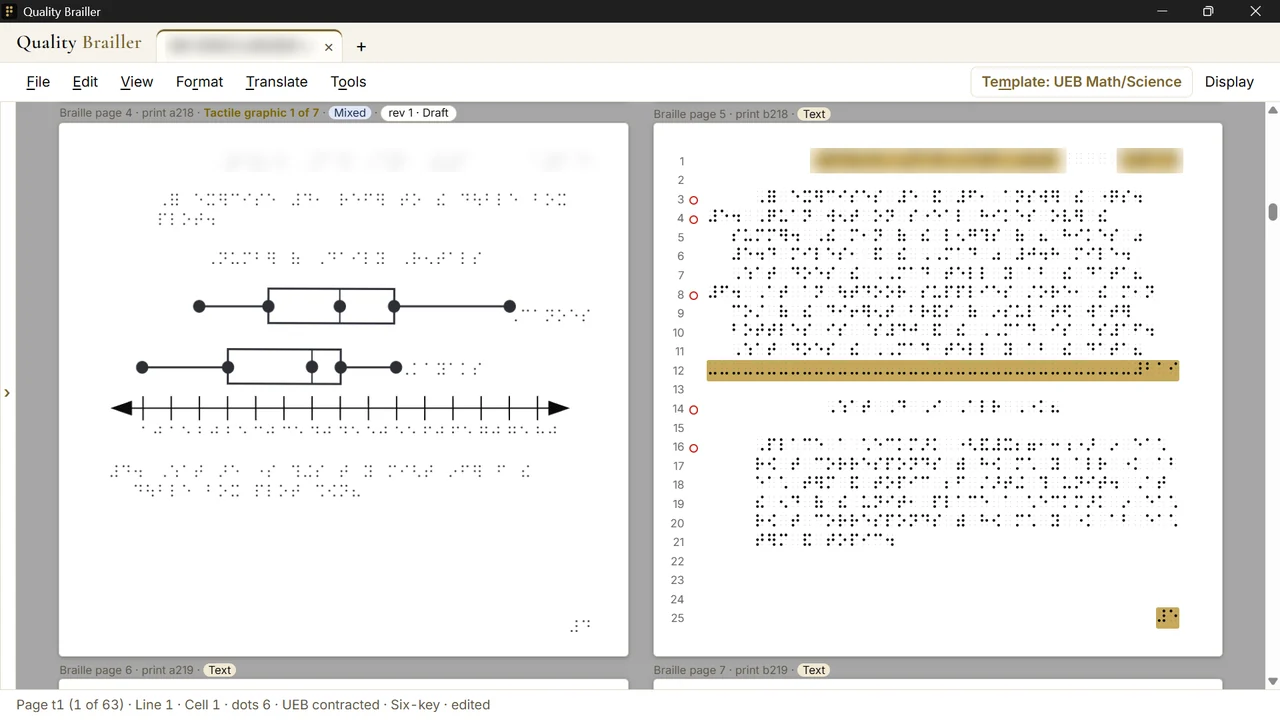
Embed the graphics directly into the file for proofreading. Insert them from your CorelDRAW PDF and each one fills its tagged braille page, so you read the volume with every graphic in place, next to the braille around it.

Each graphic keeps its revision and approval, and File > Emboss sends the text pages to your braille embosser and the graphic pages to your graphics embosser.

A tactile graphic of two box plots above a number line, embedded on its braille page, beside the next page of braille text.

Check the braille before you emboss it

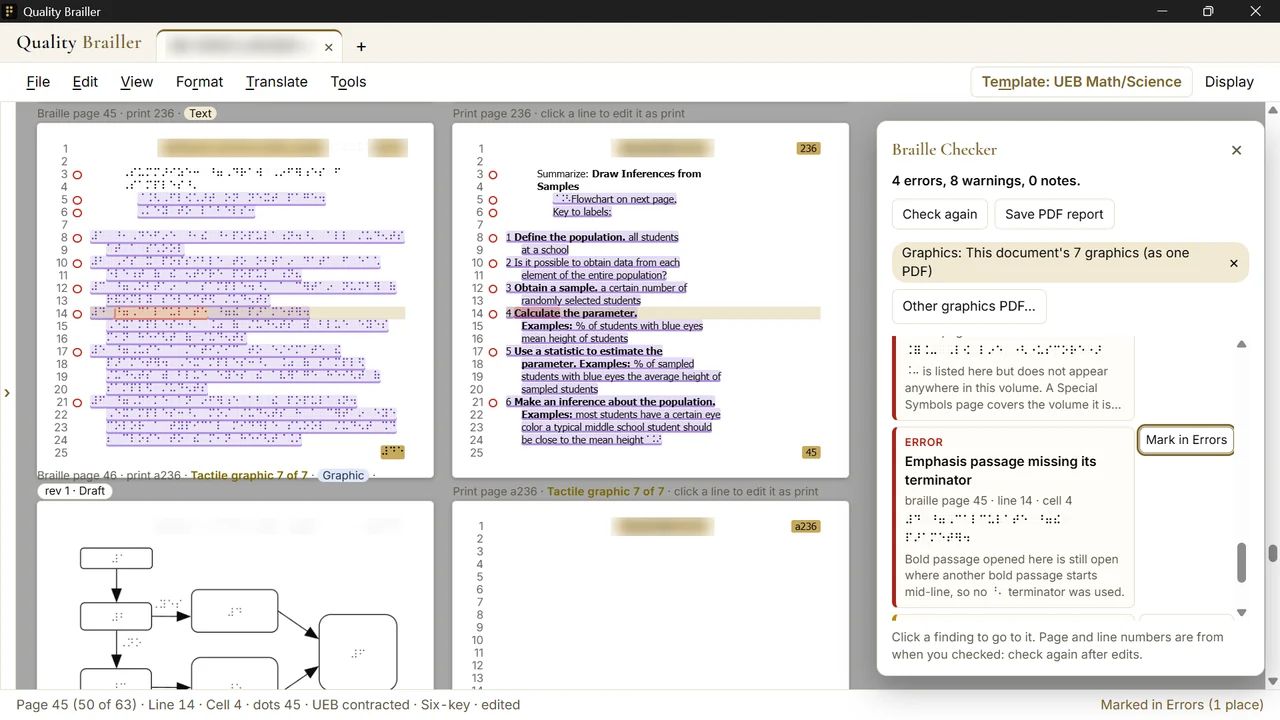
The Braille Checker checks the open document, with your graphics PDF if you add it, and lists every error and warning: emphasis left open, symbols missing from the Special Symbols page, numbering that skips, and more.

Click a finding to go straight to it, mark the place for later, and save the report as a PDF.

Braille page 45 beside its print page, with the Braille Checker open on the right: 4 errors and 8 warnings, the document’s 7 graphics checked as one PDF, and an emphasis passage missing its terminator highlighted on line 14.

What’s included

Your braille files

  • Opens BRF and BRL files, and .B2K and .BML document files. A .BML opens with its formatting and highlights.
  • Saves BRF for embossing.
  • Work on several documents at once in tabs.
  • Autosave keeps a recovery copy of every changed document, offered back if the app closes before you save.

Formatting

  • Paragraph formats 3-1, 1-3, 3-5, 1-5, cell-5 and centered headings, 5-3 directions and 7-5 transcriber’s notes, or any indent, runover and blank lines.
  • New braille pages, print page numbers, body, p and t page numbering, running heads, and contents entries with guide dots.
  • Double spacing and box lines. Select text and add bold, italic or underline: the UEB indicators are inserted for you.
  • With line numbers on, a dot in the margin marks where each format starts. Click it to select that section.

UEB and Nemeth

  • Type print (Ctrl+T) and insert it as UEB braille at the cursor. Math written in LaTeX between dollar signs becomes Nemeth.
  • Open Word (.docx), Markdown and plain-text files and translate them into a braille document with BANA formats for headings, paragraphs and lists.
  • Mark Nemeth regions from the opening and closing indicators, and set a paragraph’s code to UEB or Nemeth.
  • Nemeth and transcriber’s notes are highlighted automatically.

Quick Keys

  • Record a run of typing and formatting, and replay it with one key.
  • Save your recorded keys as a library and load it again, on this computer or another.
  • Bring your Braille2000 speed keys. Braille2000 saves your keyboard macros in your .BML and .B2K files: choose Tools › Quick Keys › Import Quick Keys from a Braille2000 file, or, with a Braille2000 document open, Import Quick Keys from this document. Each key keeps its key, and any step that replays differently from Braille2000, or doesn’t run yet, is marked. Chord keys (dots with the space bar) can’t be Quick Keys yet.

Checking and printing

  • The Braille Checker checks the open document, whatever its format: a BRF, .B2K or .BML file, an imported file or a new document. Click a finding to go to it, and save the findings as a PDF report.
  • Print or save as PDF in braille, ASCII, print or interline view, one braille page per 11.5 by 11 inch sheet.
  • Find and replace in ASCII braille, with cut, copy, paste, undo and redo.

Your workspace

  • Two-page view, zoom and fit page, line numbers, a cell ruler, shadow dots, a dark theme, and your own braille and highlight colors.
  • Page-by-page or rolling scrolling.
  • A tool dock you can customize, and workspace templates for UEB literary, UEB with Nemeth and UEB math/science work, plus any you save yourself.

Good to know

  • Translation needs a QBT account and an internet connection. Translation, Type print, file import, the print, interline and side-by-side views, and the Braille Checker run on the QBT server, under a signed-in QBT account with an active trial or plan. The installed app opens, edits and saves braille files on your computer without signing in and without an internet connection. The web version always needs both.
  • Translation is automatic, so proofread translated braille, especially Nemeth, before you emboss it. The print, interline and side-by-side views and the Braille Checker are there for that.
  • .B2K, .BRF and .BRL files open from their braille pages, one paragraph per line. Those lines don’t reflow into paragraphs yet.
  • Some settings in .B2K and .BML files aren’t read yet, so a few files may lay out slightly differently than they do in the program that made them.
  • Only the bold, italic and underline typeforms are available. The app is in English only.

Prepare documents in Word

Quality Brailler Braille Prep is a free add-in for Microsoft Word. It checks a Word document for what would be lost or wrong in braille (headings that are only bold text, pictures with no description, columns lined up with tabs, typed math and more), fixes it with you, and sends the finished document to Quality Brailler. No braille knowledge needed. It works in Word for Windows, Mac and Word on the web.

It is free in Microsoft’s add-in store. In Word you can also choose Home › Add-ins and search “Braille Prep”.

Get it from Microsoft Marketplace

School or company blocks the store? Other ways to add it. More about Braille Prep.

Try it free, then choose a plan

There is one 14-day free trial per email address, with full access and no card needed. The trial begins the first time you use Quality Brailler with your QBT account.

  • No sales tax is added. The price you see is the price you pay.
  • Refunds within 7 days. Changed your mind? Email support@qualitybraille.com within 7 days of your purchase for a full refund. A refunded plan ends when the refund is made.
  • One computer at a time. A license is for one person. Open Quality Brailler on another computer and choose Use it here, and the license moves there.
  • Bought from us, not from Microsoft or Apple. The downloads from Microsoft Store and the Mac App Store are free. Subscribe above, or in the Windows app or the web version: choose the button “Free trial: … days left · Subscribe” at the bottom of the window, or choose Plans & billing on the Account menu (or under Translation in the Setup tab of the tool dock). Either way, you pay on a secure Stripe checkout page. Use the email you sign in to Quality Brailler with, and your plan is on as soon as you pay. Cancel a monthly or yearly plan at any time: in the app, open Plans & billing and choose Manage billing, or use the manage your plan page with the email you paid with. Canceling stops the next renewal, and your plan stays active until the end of the period you have paid for.
  • Your files stay yours. When your free trial or plan ends, Quality Brailler locks on your account until you choose a plan. Files you saved stay on your device, and the installed app still opens, edits and saves braille files without signing in.

System requirements

Windows
Windows 10 version 1809 (build 17763) or later, or Windows 11, on a 64-bit (x64) PC. Free from Microsoft Store.
Mac
macOS 13.3 or later. Free from the Mac App Store in the United States. Elsewhere, use the web version.
WebView2 (Windows)
Microsoft Edge WebView2 Runtime. It is built into Windows 11; on Windows 10 it may need to be installed from Microsoft.
Account and internet
A QBT account and an internet connection, for translation, the print views and the Braille Checker. The installed app opens, edits and saves braille files without either. The web version always needs both.
Recommended
Windows 11 and a keyboard that registers six keys pressed at once (for six-key entry).
Screen readers
With a screen reader, you can sign in, use the menus and dialogs, type print with Type print, open your files, read the braille with your screen reader’s reading keys, and export BRF and eBraille, all from the keyboard. Spoken feedback while you type and move around the braille page is in the web version; the Windows and Mac apps get it in their next update. We have tested this on Windows with automated tools, not yet with a person using a screen reader. Mac and iPad with VoiceOver are not checked yet. If you use a screen reader, tell us what you need.
Web version
Runs in your browser at app.qualitybraille.com/brailler, signed in with your QBT account. Use Chrome or Edge: in other browsers, each save downloads a copy instead of saving in place.
Language
English.

Frequently asked questions

Do I need a QBT account?

You need one for translation, the print views and the Braille Checker. They run on the QBT server under your QBT account, so they need an account and an internet connection. The installed app opens, edits and saves braille files without an account or an internet connection. The web version always needs both. You can create an account inside the app: enter your email and choose Email me a code.

How does the free trial work?

There is one 14-day free trial per email address, with full access and no card needed. If you delete an account that had Quality Brailler and sign up again with the same address, the new account doesn’t get a free trial. The trial starts the first time you use Quality Brailler with your QBT account. When it ends, choose a monthly or yearly plan to keep going. See what happens when a trial or plan ends.

Do I buy a plan in Microsoft Store or the Mac App Store?

No. The downloads from Microsoft Store and the Mac App Store are free. Plans are sold by Quality Braille Transcriptions LLC: choose one on this page, or in the Windows app or the web version (the button “Free trial: … days left · Subscribe” at the bottom of the window, or Plans & billing on the Account menu, or under Translation in the Setup tab of the tool dock), signed in with your QBT account, and pay on a secure Stripe checkout page that opens in your browser. No sales tax is added.

Can I use it on more than one computer?

A license is for one person, used on one computer at a time. If you open Quality Brailler on another computer, choose Use it here and the license moves there. The web version counts as one of those computers. Need it on more than one computer at a time? Email support@qualitybraille.com.

Does it work on a Mac or iPad?

Yes. Quality Brailler works on Windows, Mac and iPad. On Windows, install the app from Microsoft Store. On a Mac in the United States, install it from the Mac App Store. On an iPad, or on any other computer, use the web version in your browser at app.qualitybraille.com/brailler, signed in with the same QBT account. The iPad app is not released yet. Chrome or Edge works best: in other browsers, each save downloads a copy instead of saving in place. Quality Brailler needs a computer or an iPad. On a phone, try the Free Braille Translator.

Does it open my .B2K and .BML files?

Yes. .BML files open with their formatting and highlights, and .B2K, .BRF and .BRL files open from their braille pages, one paragraph per line. Some settings in .B2K and .BML files aren’t read yet, so a few files may lay out slightly differently than they do in the program that made them. Braille2000 is a trademark of its respective owner. Quality Brailler is an independent product of Quality Braille Transcriptions LLC and is not affiliated with, sponsored by, endorsed by, or certified by Braille2000, LLC.

Do you keep my documents?

No. Your braille files stay on your computer. Text and braille go to our server only when you use a feature that needs it: translating (including Type print and opening a Word, Markdown or text file to translate), showing braille as print (the print, interline and side-by-side views, the print title page in two-page view, editing a paragraph or running head as print, and printing or saving a PDF that includes print), and the Braille Checker. We send the result straight back without storing it. The one exception is Convert a PDF to braille: we keep a copy of the PDF and its braille as your transcription record. Read about PDF conversions in our privacy policy. If you save a Braille Checker PDF report, we keep a short-term copy for up to 30 minutes so you can open it.

Can I get a refund?

Yes. If you change your mind, email support@qualitybraille.com within 7 days of your purchase for a full refund.

How is this different from the braille converter?

The braille converter turns a whole textbook PDF into braille-ready BRF files. Quality Brailler is an editor: you work on braille page by page, entering, formatting, proofreading and checking it. Each has its own plans.

Braille2000 and CorelDRAW are trademarks of their respective owners. Quality Brailler is an independent product of Quality Braille Transcriptions LLC and is not affiliated with, sponsored by, endorsed by, or certified by them. Microsoft, Windows and Microsoft Store are trademarks of the Microsoft group of companies.


Try it free for 14 days

Get Quality Brailler from Microsoft Store or, in the United States, the Mac App Store, or use it in your browser. Create a free account or sign in, and open a file you are working on. No card needed.

Our braille software

  • Quality BraillerYou are here

    Braille transcription editor: six-key entry on formatted braille pages, UEB and Nemeth translation, proofreading views and the Braille Checker built in. Windows, Mac and iPad.

  • Braille Converter

    Upload a textbook PDF, review the extracted structure and export embosser-ready BRF for a transcriber to review. Starts with 25 free pages.

  • Braille Checker

    A quality-control report for Braille2000 .B2K and .BML files. It is also built into Quality Brailler.

  • Braille Prep (Word add-in)

    Free Microsoft Word add-in that finds what would be lost or wrong in braille, fixes it with you and sends the document to Quality Brailler.

  • Free Braille Translator

    Type text or a name and see it in UEB braille, free, in your browser.